 DND Override
Check notification channels first
Open the source app's Android notification settings and inspect its categories. If the important event already has its own channel, assigning a channel sound is simpler and more reliable. Use a text rule only when the event shares a channel with routine notifications.
How the keyword sound rule works
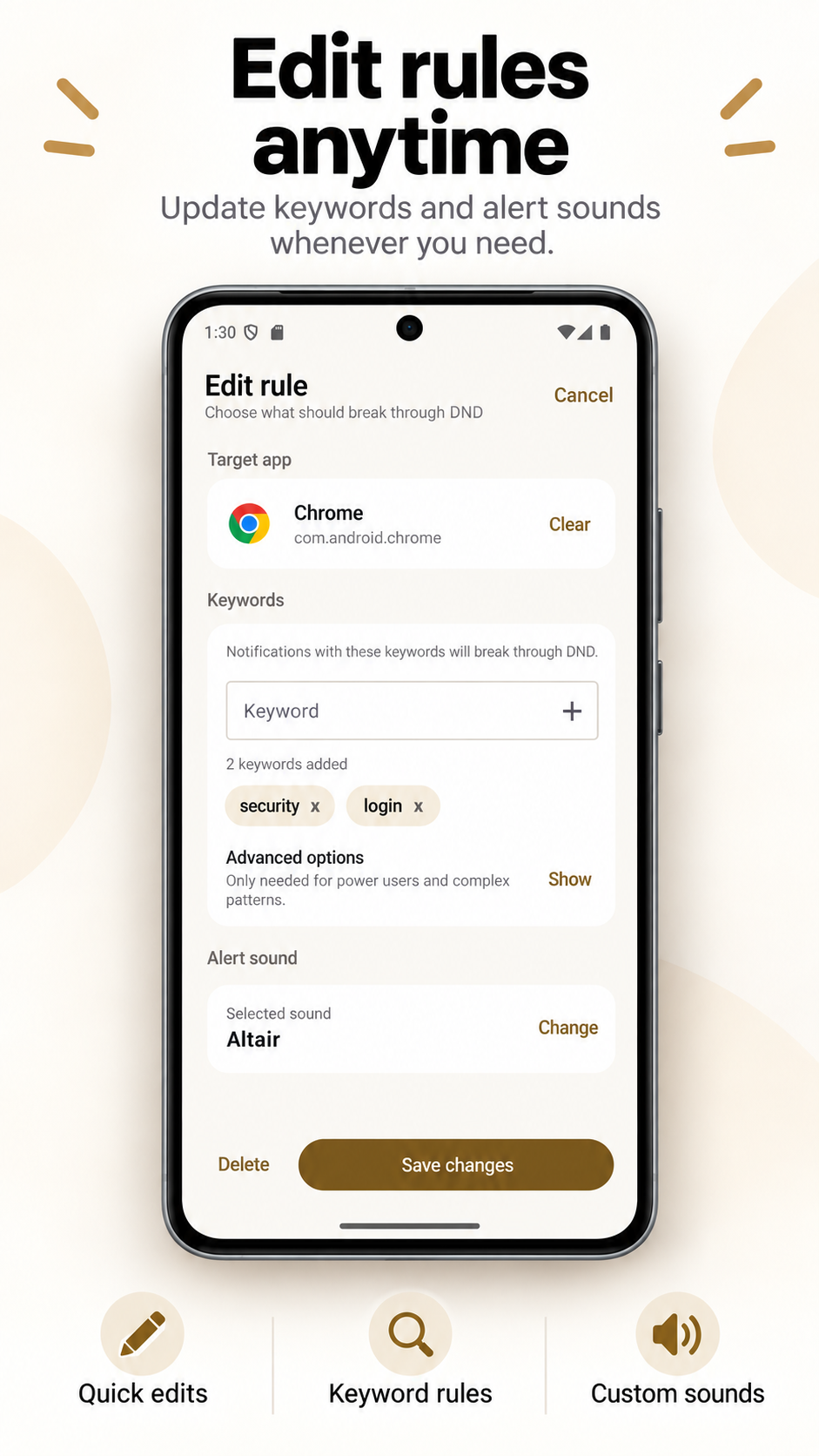
- Create a rule and optionally select one installed app.
- Add one or more literal keywords, or one advanced regex pattern.
- Choose whether any or all literal keywords must appear.
- Choose a system notification sound or select an audio file with Android's document picker.
- Enable DND and test a real notification.
The visible notification title and message are combined for matching. Literal rules can ignore letter case. Regex rules in the current editor are case-sensitive.
Sound behavior
When a matching notification is posted while DND is active, DND Override queues the selected sound using alarm audio attributes. Alarm volume must be above zero. If a selected custom file becomes unavailable, the app attempts the default notification sound. Distinct matching notifications are queued so one does not interrupt another.
Limits worth knowing
- The sound is not attached to or generated by the source app's notification channel.
- The app does not loop until acknowledgement.
- Notification dismissal does not stop sound already playing.
- Playback uses watchdog limits and remains subject to device behavior.
- A custom sound is not an emergency-delivery guarantee.
Related: keyword matching and urgent-notification rules.